
TL;DR
- QuickBooks records sales, payments, and commission expenses throughout the commission lifecycle.
- Clear commission rules, standardized sales data, and consistent tagging support accurate commission calculations.
- Finance teams should review payment status, sales credit, commission rates, and adjustments before recording payouts.
- Accelerators, splits, clawbacks, and multi-condition plans increase the complexity of commission management.
- Everstage manages commission calculations, approvals, payout visibility, and audit records in a single platform.
Book a demo with Everstage to see the results yourself.
Here’s the honest version most guides won’t give you. QuickBooks is great at a specific set of jobs: it can record sales, tag revenue, run reports, and book commission expenses. What it doesn’t do is calculate commissions the way a dedicated compensation system does.
So, if you’re using QuickBooks alongside spreadsheets to get reps paid, you’re using an accounting tool to support a workflow it wasn’t specifically built for. Plenty of strong finance teams are in exactly the same position.
Our recommendation is to use QuickBooks as your financial source of truth, keep your commission rules documented outside it, and build a clean, repeatable process for calculations, reporting, approvals, and booking payouts.
The right setup depends on the complexity of your commission plan. QuickBooks and a spreadsheet may be enough for simple, flat-rate commissions. Accelerators, splits, clawbacks, multiple payout conditions, and frequent adjustments require tighter controls.
In this article, we’ll explain how to track commissions in QuickBooks, where spreadsheets fit, and when it may be time to consider a dedicated commission platform.
Why Tracking Sales Commissions in QuickBooks Gets Complicated as You Scale
Sales compensation typically accounts for 8–12% of annual recurring revenue (ARR), making it one of the largest controllable operating expenses for growing B2B companies. As commission plans become more complex, manual spreadsheet processes make it harder for finance teams to maintain visibility and accuracy.
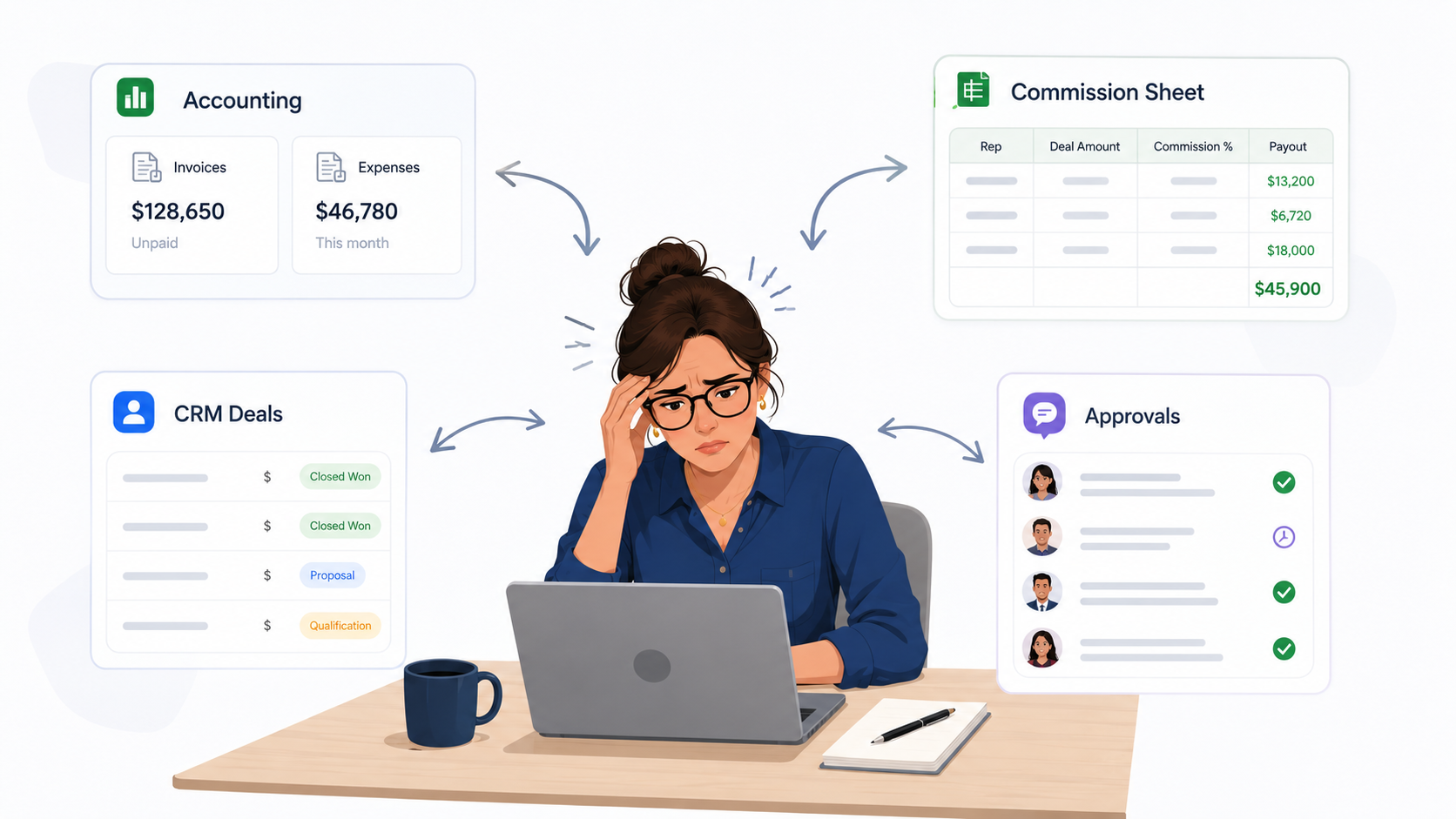
QuickBooks can record sales, invoices, payments, and commission expenses. But calculating sales commissions in QuickBooks usually requires additional spreadsheets or systems because the platform does not manage commission rules and payout logic.
QuickBooks is like a kitchen scale. It measures each ingredient accurately, while your finance or RevOps team sets the recipe and follows the right steps to calculate commissions.
This challenge becomes more pronounced when data is spread across multiple systems. Salesforce’s 2026 State of Sales research found that sellers use an average of eight tools to close deals, while 42% of sales reps feel overwhelmed by the number of tools they use. For commission teams, each additional system introduces another data source that must be reconciled before payouts are approved.
That process becomes harder as compensation plans introduce:
- Usage-based pricing
- Multi-year contracts
- Split commissions
- Accelerators
- Clawbacks
- Multiple payout conditions
- CRM and RevOps data dependencies
What Parts of Commission Tracking Can QuickBooks Handle?
QuickBooks can support several parts of the commission process:
- Track eligible sales: Use invoices, sales receipts, payments, customers, and products or services to identify the revenue tied to a payout.
- Organize sales data: Classes, locations, projects, and custom fields can help separate revenue by team, region, product, or sales rep, depending on your QuickBooks plan and setup.
- Run commission reports: Sales reports can provide the data finance needs to calculate payouts.
- Record commission payments: Commissions can be booked as expenses, bills, payroll items, contractor payments, or journal entries, depending on how reps are paid.
The commission calculation itself usually happens outside QuickBooks. This includes applying rates, splits, accelerators, clawbacks, thresholds, and other plan rules.
A practical setup is to calculate and approve commissions in a spreadsheet or commission platform, then use QuickBooks to verify the underlying revenue and record the final expense.
Why Use QuickBooks in Your Commission Tracking Process?
Even when commissions are calculated elsewhere, keeping QuickBooks connected to the process gives finance a clearer and more reliable record of each payout.
- Easier month-end reconciliation: Commission expenses can be matched with the invoices or payments that triggered them.
- Clearer payout records: Finance can trace the final commission amount back to the underlying sales data.
- Fewer disconnected spreadsheets: QuickBooks provides a consistent financial record, even when calculations are done in another tool.
- A smoother path to automation: Well-organized sales and payout data make it easier to introduce a dedicated commission platform later.
This approach keeps QuickBooks focused on financial reporting while giving sales and finance teams the flexibility to manage commission rules in the right system.
Suggested read: Learn how finance teams record, accrue, and report commission expenses in our Sales Commission Accounting Guide
How to Track Commissions in QuickBooks Online
Commission tracking in QuickBooks starts with clearly defined payout rules and consistent sales data. The following steps show how to structure the process, review commissions, and record the approved expense.
Step 1: Define the Commission Rule
Before configuring QuickBooks, write down exactly how the commission is earned.
Clarify:
- Whether commission is based on booked, invoiced, collected, recognized, or margin-based revenue
- Which rep receives credit
- Whether the deal includes splits, thresholds, accelerators, caps, draws, or clawbacks
- When the commission is earned and when it becomes payable
For example, your commission rule could state that account executives earn 8% of first-year subscription revenue after the customer pays the invoice, while renewals are excluded and split deals follow the opportunity split recorded in the CRM.
A clearly defined rule like this tells you which data to capture in QuickBooks, how to structure invoices, and when to approve the payout.
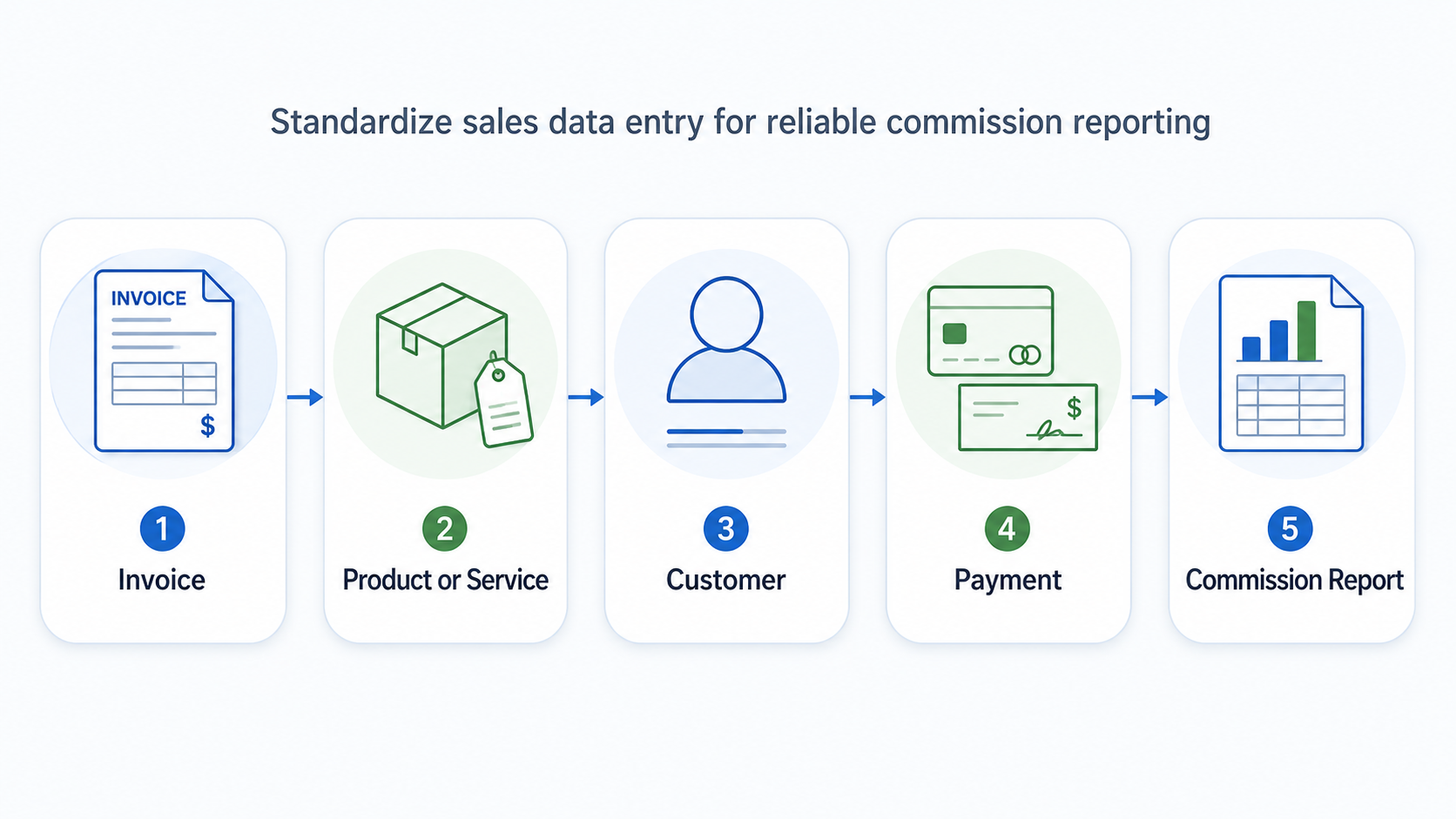
Step 2: Standardize the Sales Data Entry in QuickBooks
Commission reports are only as reliable as the invoice data behind them. Use consistent naming and categorization so finance can identify commissionable revenue without having to review every transaction manually.
Focus on four areas:
- Customer names: Keep customer and account names consistent with your CRM.
- Products and services: Separate commissionable and non-commissionable charges.
- Transaction types: Use a consistent billing method for similar sales.
- Payment status: Track whether the invoice has been issued, partially paid, or fully paid.
For example, subscription revenue may be commissionable while implementation fees are not. Recording them as separate product or service lines allows finance to filter them correctly when preparing the commission report.
Step 3: Decide How to Assign Sales to Reps or Territories
To calculate commissions, you need a consistent way to show who should receive credit for each sale.
Choose the field based on how your team assigns ownership:
- By rep or deal: Use a custom field to add the rep’s name, CRM deal ID, or another sales identifier.
- By territory or region: Use classes or locations to group revenue by territory, branch, or sales region.
- By customer: Use "customers" or "sub-customers" when the account owner receives the commission.
- By project: Use projects when commissions are tied to specific client engagements or service work.
Use the same method across every eligible transaction. Before choosing classes or locations, check whether your finance team already uses them for accounting reports.
The fields available to you will depend on your QuickBooks Online plan.
Step 4: Set the Level at Which Revenue is Tagged
Once you choose a field, decide whether it applies to the entire transaction or to individual invoice lines.
Transaction-level tagging may be sufficient when a single rep or territory owns the entire invoice. Line-level tagging is more useful when:
- Multiple reps share credit
- Products belong to different territories
- Some invoice lines are commissionable, and others are not
- Different rates apply to different products or services
Document who is responsible for adding the field and make it part of the invoice creation process. Missing or inconsistent tags will create manual reconciliation work later.
Step 5: Create and Save the Required Sales Reports
The report you use should match the basis of the commission plan.
Common options include:
- Sales by Customer: For account-based commission plans
- Sales by Product or Service: For plans based on commissionable products
- Sales by Class or Location: For team, territory, branch, or regional plans
- Open Invoice or Payment reports: For commissions released after payment is received
This payment-status view is particularly important because QuickBooks’ research found that 59% of surveyed businesses had invoices overdue by at least 30 days. Using invoice value alone could therefore cause finance teams to approve commissions before the underlying revenue has been collected.
Apply the required filters for the commission period, products or services, payment status, and ownership field. Save the customized report so finance can rerun the same view during every payout cycle.
Export the report to Excel, Google Sheets, or your commission platform for the calculation and approval stage.
Step 6: Calculate and Review the Commission
Export the required sales data from QuickBooks and use it to calculate the payout.
For example, if a rep earns an 8% commission on a $10,000 invoice:
- Commissionable revenue: $10,000
- Commission rate: 8%
- Commission earned: $800
If your plan pays commissions only after the customer pays the invoice, the $800 should remain pending until the payment is received.
Before approving the payout, review the calculation and confirm that:
- The sale qualifies for commission
- The correct rep received credit
- The right commission rate was applied
- Any splits, adjustments, or exceptions were included
- The invoice meets the required payment condition
When using a spreadsheet, keep the original QuickBooks export unchanged, lock formula cells, document manual adjustments, and add columns for approval and payout status.
This gives finance a clear record of how each commission was calculated and approved.
Step 7: Record the Approved Commission Expense
After the payout has been calculated and approved, record the expense in QuickBooks.
The appropriate method depends on how the rep is paid:
- Payroll commission item: For employees paid through payroll
- Vendor bill: For contractors or external sales partners
- Expense or check: For simpler payment workflows
- Accrual or journal entry: When the expense must be recognized before payment
Use consistent commission expense accounts and include the payout period or supporting reference in the transaction description.
Confirm the accounting and tax treatment with your accountant, particularly for employee payroll, contractor payments, accruals, and deferred commission costs.
QuickBooks Online vs. Desktop for Commission Tracking
The commission process is broadly similar in both versions, but the available setup options differ.
This guide focuses on QuickBooks Online. Check the features available in your plan before choosing a tagging or reporting method.
Common QuickBooks Commission Tracking Mistakes
Even a simple commission process can produce incorrect payouts when the underlying data is inconsistent. Correcting these issues early reduces the time spent investigating exceptions later.
- Using the Full Invoice Amount
Commissionable revenue should be separated from implementation charges, taxes, discounts, and other excluded items by recording each category on a distinct invoice line.
- Using the Wrong Commission Trigger
If commissions are earned after payment, do not calculate them from invoices that are still unpaid. The report you use must match the rule defined in your commission plan.
- Reusing Accounting Fields Without Checking With Finance
Classes and locations may already support financial reporting. Using the same fields to identify sales reps could affect existing reports.
- Leaving Payment Status Out of the Calculation
When payouts depend on collected revenue, the commission file should clearly show whether an invoice is unpaid, partially paid, or fully paid.
- Editing The Original QuickBooks Export
Keep the source export unchanged. Perform calculations and adjustments in separate tabs so finance can trace every payout back to the original data.
- Approving Payouts Without Rep Review
Give reps a chance to review the deals, credits, and adjustments included in their payout before the final amount is sent to payroll or accounts payable.
Suggested read: Learn how to structure payout data and give reps a clear earnings breakdown in our guide to sales commission reports.
How to Know When You Have Outgrown QuickBooks and Spreadsheets
QuickBooks and a controlled spreadsheet can continue to work when the payout process is predictable and easy to review.
The process may need a dedicated commission platform when:
- Finance spends several days rebuilding the calculation each cycle
- Manual adjustments have become common
- Multiple people edit or approve the same spreadsheet
- Sales credit depends heavily on CRM ownership and deal splits
- Reps regularly question how their payouts were calculated
- Finance cannot easily trace an amount back to its source
- Payout approval is delaying payroll or month-end close
When to Move from QuickBooks and Spreadsheets to Everstage
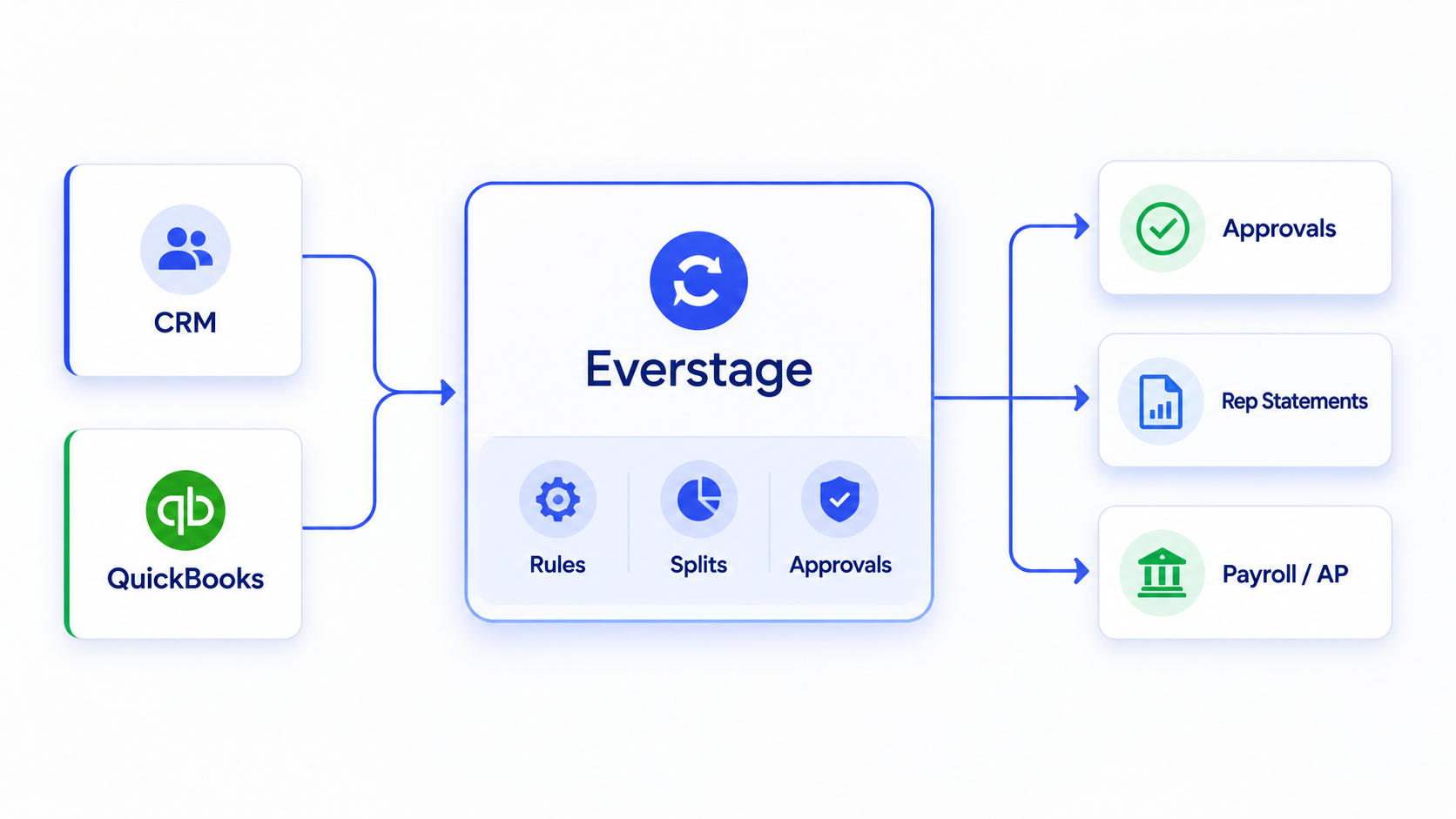
QuickBooks can continue to hold your invoice, payment, and commission expense data. Everstage adds the layer needed to manage the commission process around that data.
Instead of rebuilding calculations in spreadsheets every month, teams can use Everstage to:
- Apply commission rules consistently across deals and reps
- Manage splits, accelerators, clawbacks, and exceptions
- Route payouts through the required approval process
- Give reps a clear breakdown of how their commission was calculated
- Maintain a record of calculation changes and approvals
- Reduce the manual work required before payroll or accounts payable
QuickBooks remains the accounting source of truth, while Everstage manages the calculations, reviews, and payout visibility that sit between sales data and the final payment.
This setup becomes especially useful when commission plans depend on information from both your CRM and QuickBooks. Sales ownership and deal details can come from the CRM, while invoice and payment data come from QuickBooks. Everstage gives finance, sales leaders, and reps a clear view of each payout, including the underlying deals, calculations, adjustments, and approvals.
How automation changes the process
One Everstage customer, Chargebee, reduced commission processing time from 3 days to 3 hours, eliminated 60+ hours of manual work every month, and gave more than 100 sales reps real-time visibility into their commissions after replacing spreadsheet-based workflows.
Build a Commission Process Your Team Can Trust
A strong commission process should provide finance with a clear record, help managers review results quickly, and enable reps to understand how each number was reached.
Everstage brings that visibility into one place, so teams can spend less time answering payout questions and more time improving sales performance.
Give every rep a clear view of what they earned and why. Book a Demo with Everstage.
Frequently Asked Questions
How should partial customer payments affect commissions?
That depends on your payout rule. Some teams release commission in proportion to the amount collected, while others wait until the invoice is paid in full. Choose one method and apply it consistently across every payout cycle.
What happens to commissions when an invoice is refunded or credited?
Refunds and credit notes should be linked back to the original payout. Depending on your plan, the commission may be reduced in the current cycle or recovered from a future payout.
Should sales tax, shipping, and other fees be included in commissionable revenue?
Usually, only the revenue defined as commissionable in the plan should be included. Taxes, shipping charges, reimbursements, and pass-through costs should be separated so they do not increase the payout accidentally.
How do you handle commissions on invoices with multiple currencies?
Use a consistent exchange-rate policy. Decide whether commissions are calculated using the invoice-date rate, payment-date rate, or the converted amount recorded in QuickBooks, and document that choice before calculating payouts.
How often should commission data be reconciled with QuickBooks?
Reconcile it before every payout cycle and again during month-end close. This helps identify late payments, refunds, duplicate invoices, and changes made after the initial commission report was created.
Can historical QuickBooks data be used when moving to commission software?
Yes. Historical invoices, payments, customer records, and product data can help validate opening balances and unpaid commissions. Clean and standardize the data before migration so old naming or categorization issues are not carried into the new system.